How RemotePC actually works
Before diving into the warning itself, it helps to understand what RemotePC does under the hood — because this context is exactly what makes Windows suspicious.
RemotePC is split into two components that talk to each other over your local network (or the internet, if configured):
- The Android app acts as the controller. It sends commands (e.g. Shutdown, Sleep, Lock) or requests data streams (e.g. live screenshots, hardware stats, real-time screen mirroring) to the Windows host.
- The Windows app acts as the host agent. It listens for authenticated instructions and executes them by calling native Windows APIs — things like
SetSuspendState(),LockWorkStation(), or the Graphics Device Interface (GDI) for screen capture.
In short: an executable sits on your PC, listens on a network port, and runs system-level calls when commanded. From Windows' perspective, that description fits a lot of remote access trojans (RATs) — which is precisely why Defender raises an eyebrow.
What SmartScreen actually is
Windows SmartScreen is a cloud-based reputation system built into Windows Defender and Microsoft Edge. Every time you run a downloaded executable, Windows sends a hash (a unique fingerprint) of that file to Microsoft's servers. Microsoft looks up that hash against a database of known software and checks two things:
- Is it signed? — Does it have a valid digital certificate from a trusted Certificate Authority (CA)?
- Does it have reputation? — Have enough users downloaded and run this exact file without reporting it as malicious?
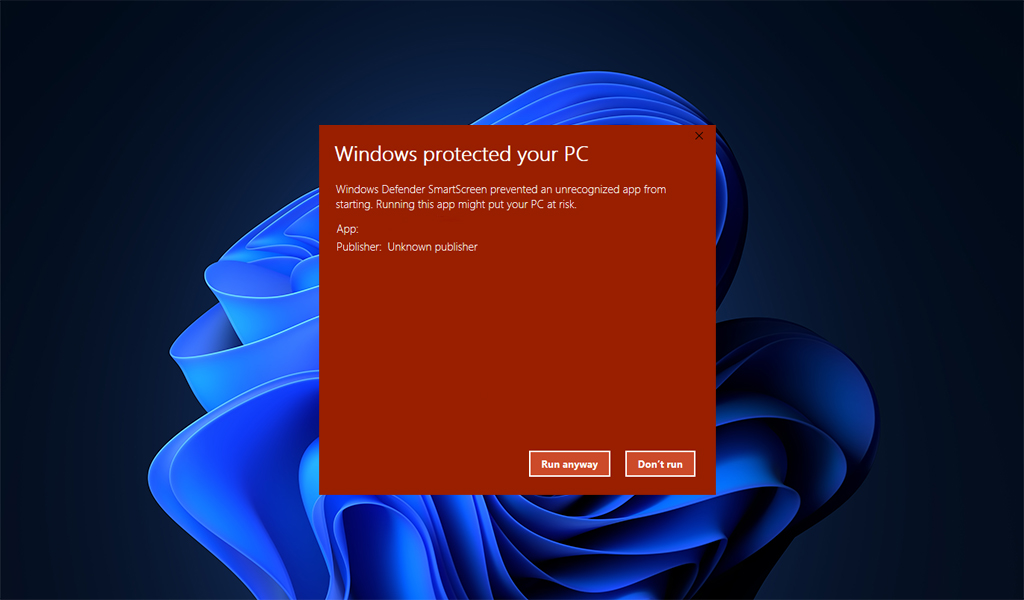
If either check fails, SmartScreen shows the blue "Windows protected your PC" warning. It does not mean the file is malicious — it means the file is unknown or unverified. There is an important difference.
"Windows protected your PC — Microsoft Defender SmartScreen prevented an unrecognized app from starting. Running this app might put your PC at risk." The key word is unrecognized, not dangerous. SmartScreen is flagging a lack of history, not a detected threat.
Why RemotePC is unsigned
Digital code signing requires purchasing an Authenticode certificate from a Certificate Authority such as DigiCert, Sectigo, or GlobalSign. There are two tiers:
- Standard (OV) certificates — Organization Validation. Costs roughly $200–$400 per year. Removes the "unknown publisher" label but does not immediately grant SmartScreen reputation — that still builds over time based on download volume.
- Extended Validation (EV) certificates — Requires a full legal identity audit and costs $300–$700+ per year. Grants instant SmartScreen reputation, bypassing the warning from the very first download.
RemotePC is a free, non-monetized tool. There are no ads, no in-app purchases, and no subscription fees. Our only ongoing costs are domain registration and hosting — and even those are already a stretch for a passion project. Spending $300–$700 per year purely to eliminate a dismissible warning is simply not financially viable at this stage.
We made a deliberate choice: keep RemotePC free and transparent rather than charge users or inject ads just to fund a certificate. We believe that's the right trade-off, and we want you to understand exactly why.
Does "unsigned" mean unsafe?
No. Code signing is a trust mechanism, not a malware scanner. A signed application simply means a certificate authority has verified the identity of the publisher — it says nothing about what the code actually does. There have been documented cases of malware signed with legitimate, stolen certificates. Conversely, countless safe, open-source, and independent tools ship unsigned.
What actually determines whether software is safe is its code — and RemotePC's source behavior can be independently verified:
- All network communication happens on a port you configure, and only responds to authenticated sessions.
- No data is routed through external servers. Everything stays on your local network unless you explicitly set up remote access.
- The app does not run at startup unless you enable that option manually.
- No telemetry, usage data, or personal information is collected or transmitted to us.
How to run RemotePC despite the warning
If you downloaded RemotePC from remotepc.tech and see the SmartScreen warning, here is how to proceed safely:
- When the blue SmartScreen dialog appears, click "More info" (the small link below the main message).
- A second screen will appear showing the app name and publisher. Click "Run anyway".
- Windows will remember your choice for this specific file. You won't be asked again for the same executable.
Before clicking "Run anyway" on any application, confirm you downloaded it directly from the official website — remotepc.tech. If you received the file via a link in an email, a third-party download site, or a message from someone you don't know, do not run it. Attackers sometimes distribute modified versions of legitimate apps. The official site is the only trusted source.
Windows Defender antivirus vs. SmartScreen
It's worth distinguishing between two separate Windows security systems that both fall under the "Windows Defender" umbrella:
- Windows Defender Antivirus — Scans files for known malware signatures and suspicious behavior patterns. If this flags a file, that is a stronger signal of a genuine threat.
- SmartScreen — The reputation-based warning system described above. This is what triggers for RemotePC. It is a softer warning based on unfamiliarity, not a malware detection.
RemotePC does not trigger Windows Defender Antivirus. Only SmartScreen flags it, and only because of the missing certificate and low download volume relative to mainstream software.
Our commitment to your privacy & security
We understand that trust has to be earned, especially for an app that operates at system level. Here is what we commit to:
- RemotePC will never exfiltrate your data to any external server.
- We will never bundle adware, toolbars, or any third-party software with the installer.
- If a signing certificate becomes financially feasible in the future, we will obtain one and eliminate this warning entirely.
- If you ever have concerns about the app's behavior, you are encouraged to inspect network traffic using a tool like Wireshark — everything it does is on your own network.
RemotePC will never compromise your privacy or security. The SmartScreen warning is a reflection of our budget, not our intentions.